Rota departments enable you to split your rota and wage costs by team. For example, you may want to plan your rota separately for your Bar and your Kitchen. For more info, see Getting started with Departments
To create a department, go into your back office and select Staff & Roles > Department.
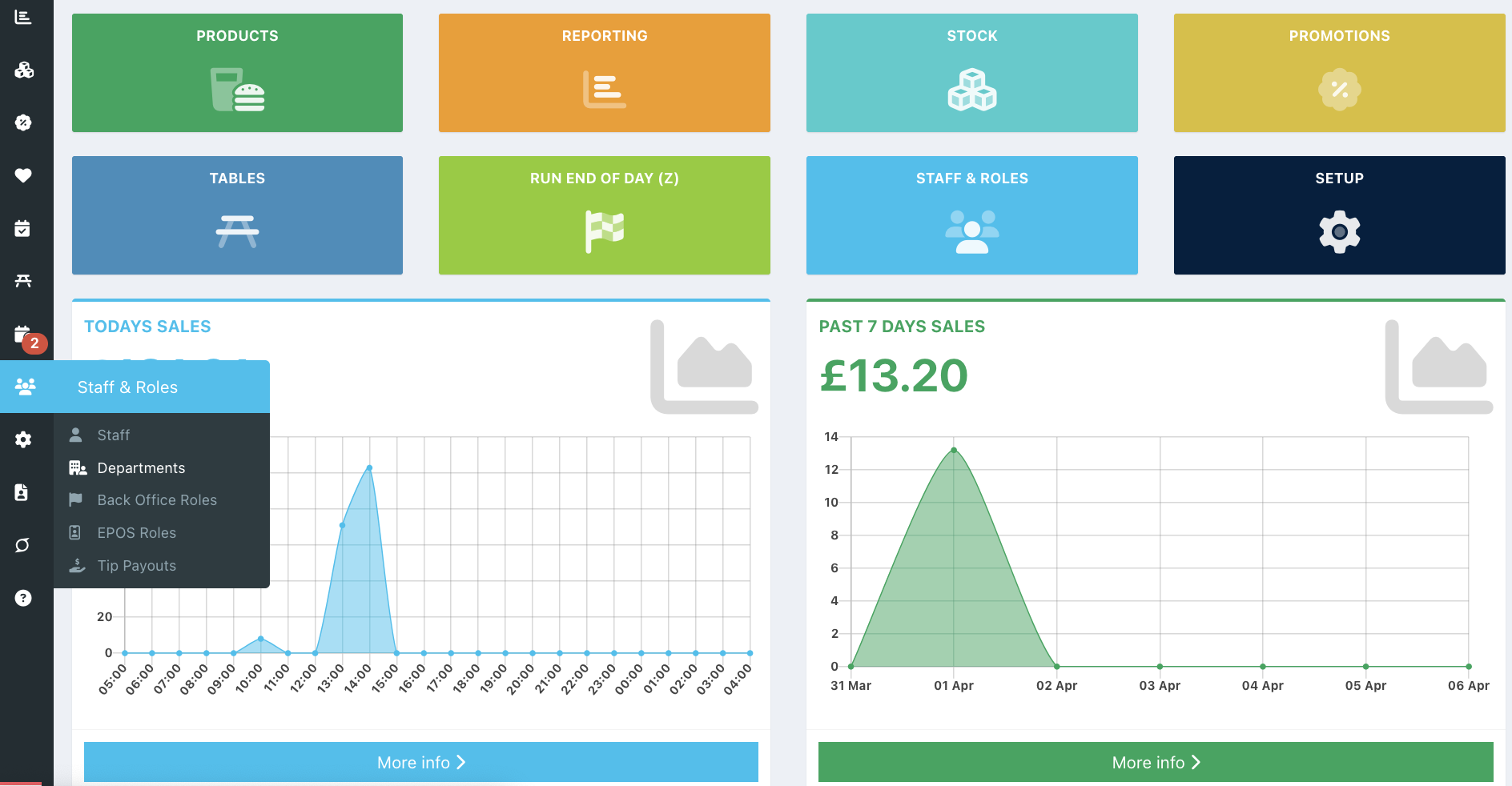
Click the blue Add department button.
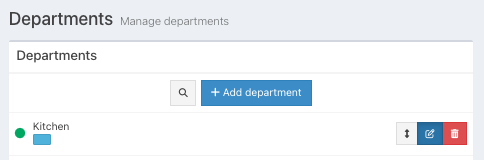
Enter a Department name, then click the blue Tick button.
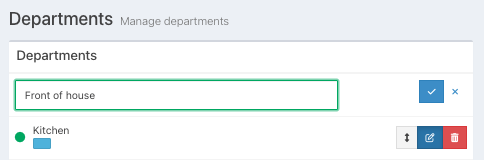
The newly created department will appear in the Department list and open on the right-hand side.
Select a Rota colour from the corresponding field. This will display as a line break on the rota indicating your department.
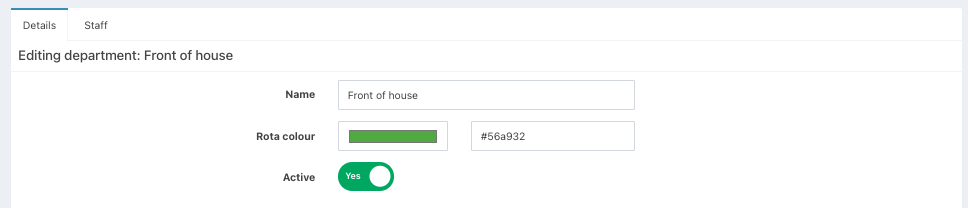
You can then add Target sales per staff and Minimum staff level to your department. These will display on the Optimise rota tab to show you where you may be over- or under-staffed.
Target sales per staff - This is the value of sales per hour (net) that can be achieved by each staff member.
Minimum staff level - This is the minimum number of staff you need to operate your department regardless of the level of sales
If you don't enter specific values for the department, any values entered in the main Staff scheduling setup will be used.

You can then assign the relevant Sales to your department. Only those sales are taken into account when planning your rota or reviewing your wagw percentage for that department. You can assign sales based on:
- Sales from root categories (Food, Drink, Other)
- Sales from a specific device
- Sales from sections
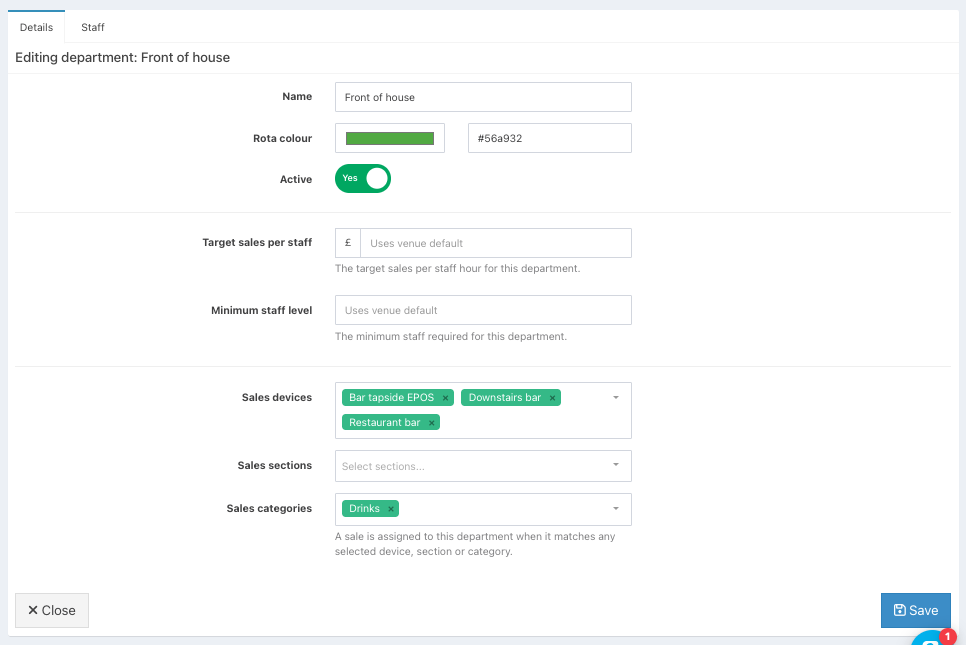
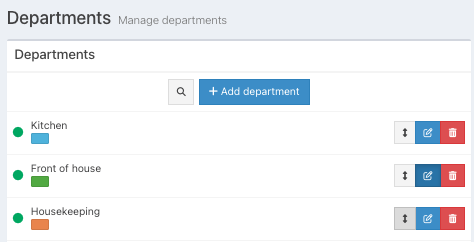
Click the blue Save button to save your department. A green circle will appear under the Department name in the list to indicate that the department is active.
You can now add your staff to your department.
Was this article helpful?
That’s Great!
Thank you for your feedback
Sorry! We couldn't be helpful
Thank you for your feedback
Feedback sent
We appreciate your effort and will try to fix the article