You can configure joined tables to specify which tables can be combined to accommodate larger bookings. When a guest books online via your booking widget, booking URL, or Reserve with Google, the system will automatically check these combinations and confirm the booking if the required capacity can be met by joining the tables together.
To use Joined Tables, you will need to :
- Set minimum and maximum number of covers per table
- Enable auto-confirm bookings
- Enable include table joins
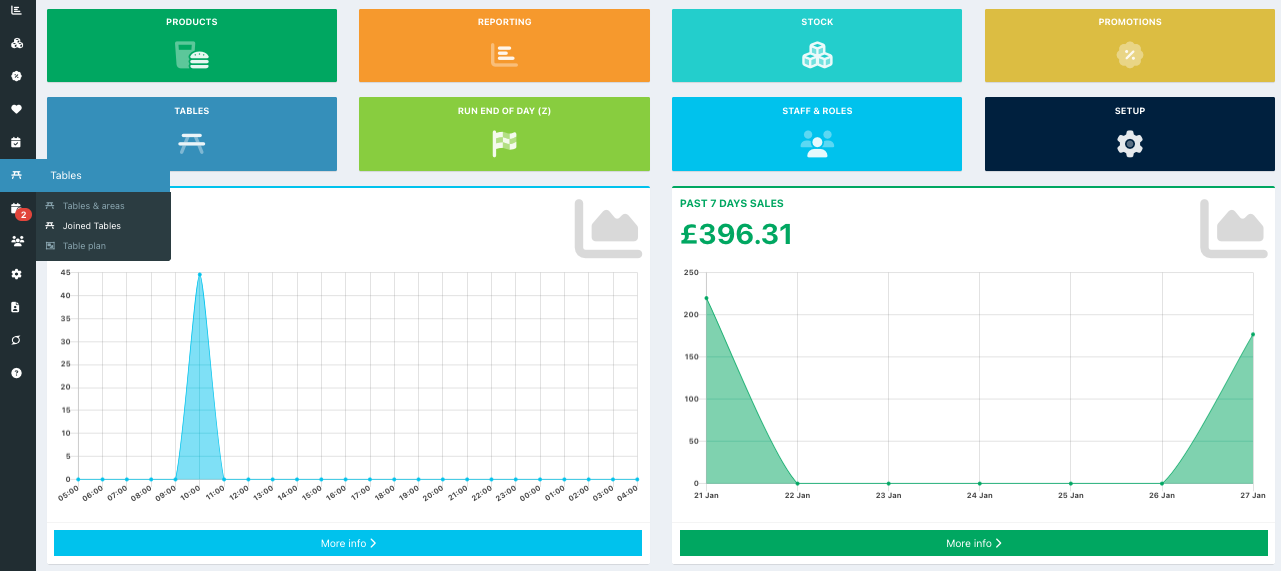
To create a Joined Table, go into your back office and select Tables > Joined tables from the left-hand navigation.
Click the blue Create a new Joined tables button. A new field will display in the Joined Tables list. Enter a new name for your Table combination and then click the blue tick at the end of the row.
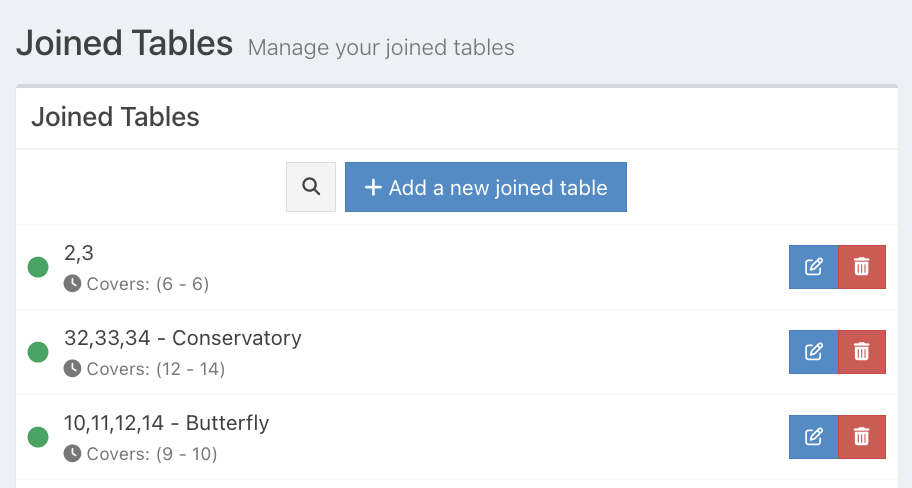
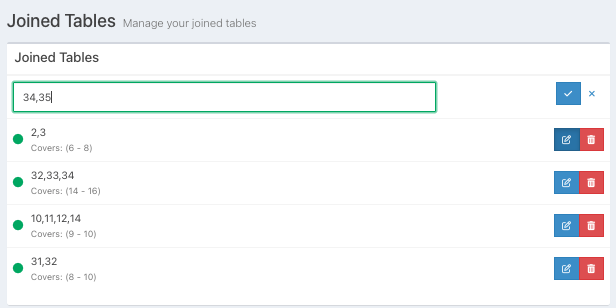
The new Joined table will display to the right of the screen.
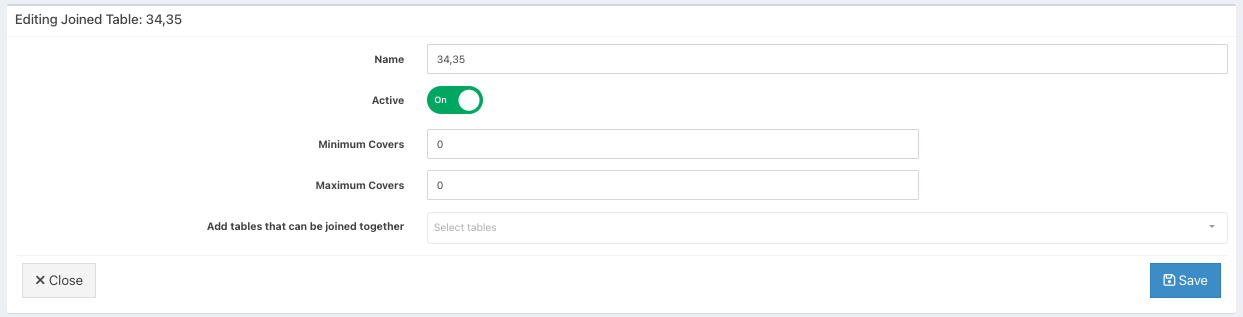
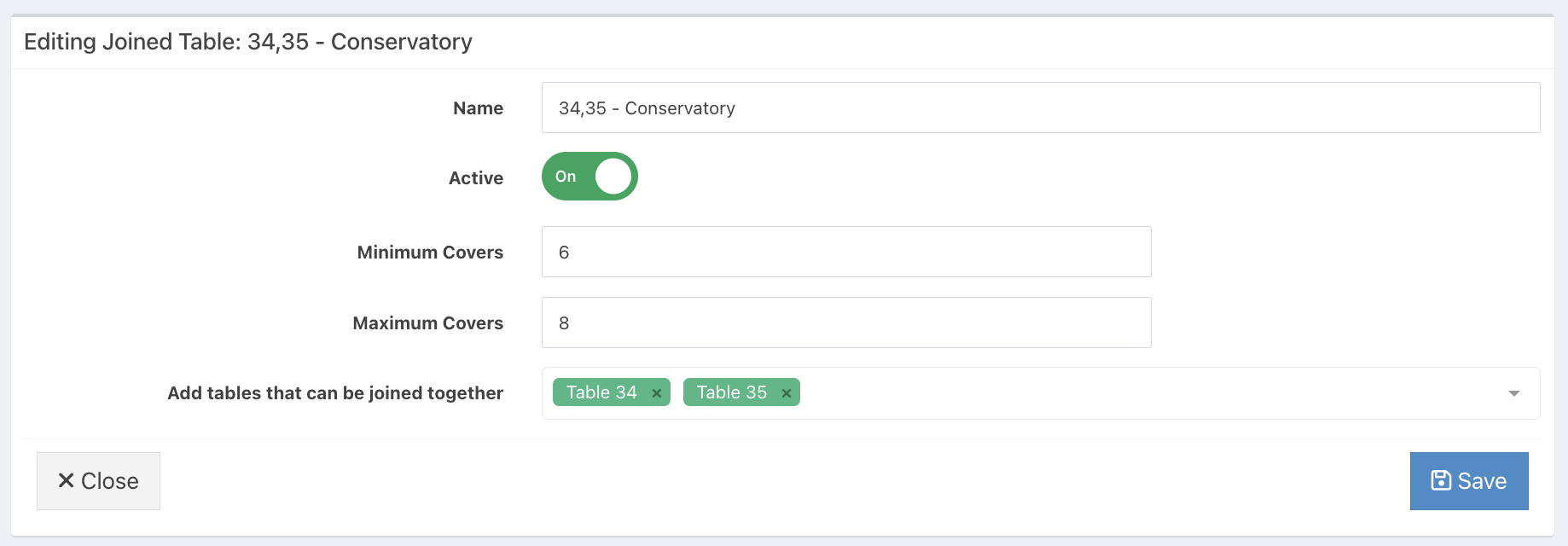
When in the Joined Table, you will be able to:
- Rename the table join if needed
- Toggle whether the Joined Table is active or not (By default this will be On when loaded)
- Set a minimum number of covers
- Set a maximum number of covers (This cannot exceed the combined maximum number of covers on the tables being joined)
- Select the required tables/areas from the Add tables that can be joined together table dropdown
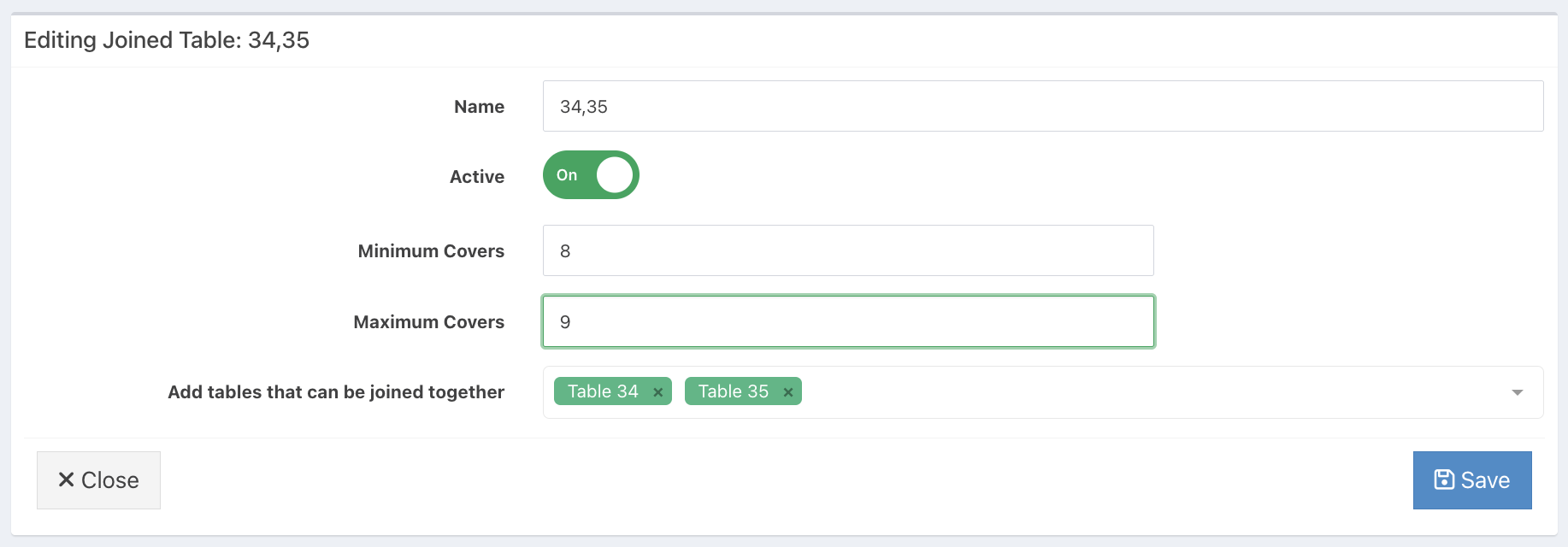
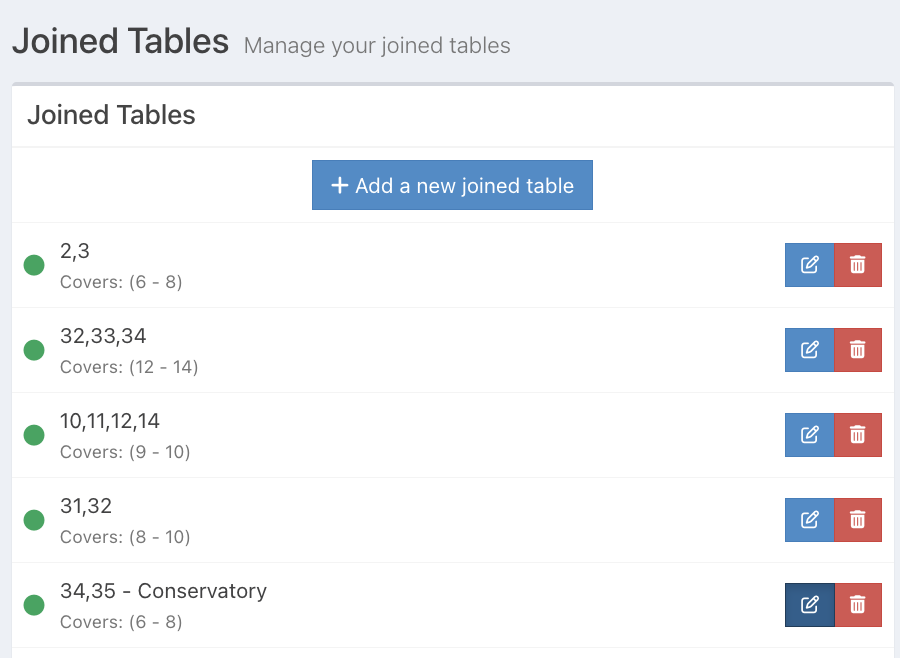
Click the blue Save button, to save your Joined Table. This will now display in the Joined Tables list.
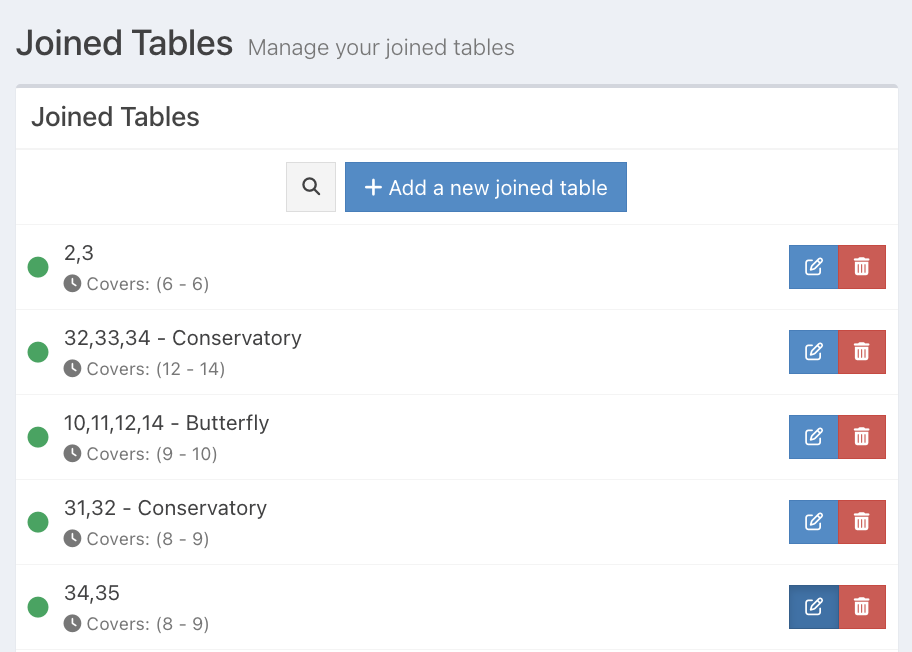
Removing a Joined Table
If you need to remove a Joined Table, locate the Join from the list, and then click the red Bin icon.
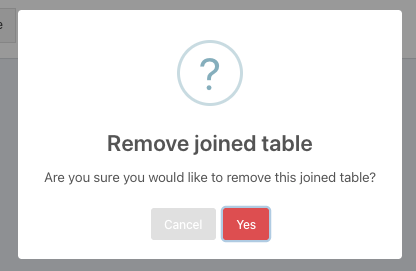
At the prompt, click the red Yes button. Your Table Join will be removed from the Joined Table list.
Editing a Joined Table
If you need to edit an existing Joined Table, locate the Joined Table from the list and click the blue Edit icon at the end of the row.
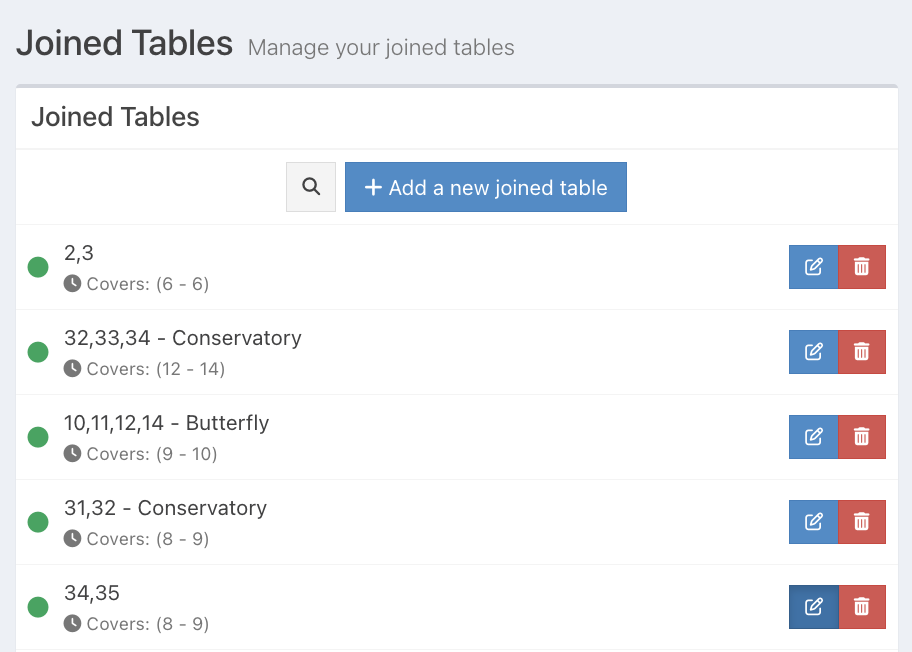
Make any required changes, then click the blue Save button.
The Joined Table will update to reflect the changes in the Joined Tables list.
Searching for a Joined Table
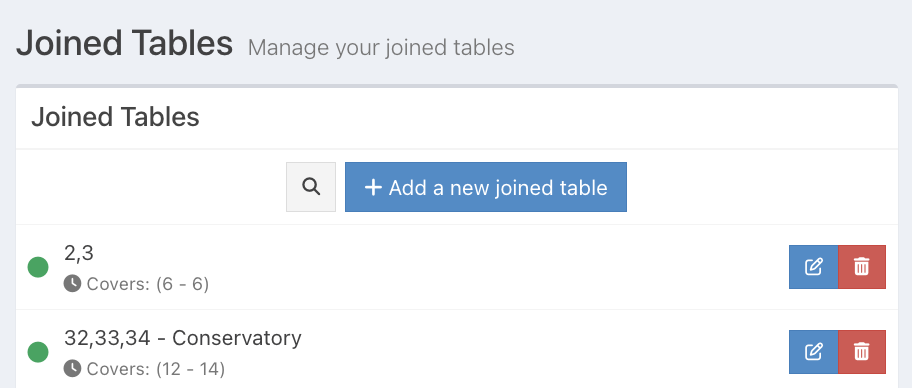
If you have a long list of Joined Tables, you can use the Search function at the top of the list to quickly locate a Joined Table.
Click the grey magnifying icon next to the Add a new joined table button.
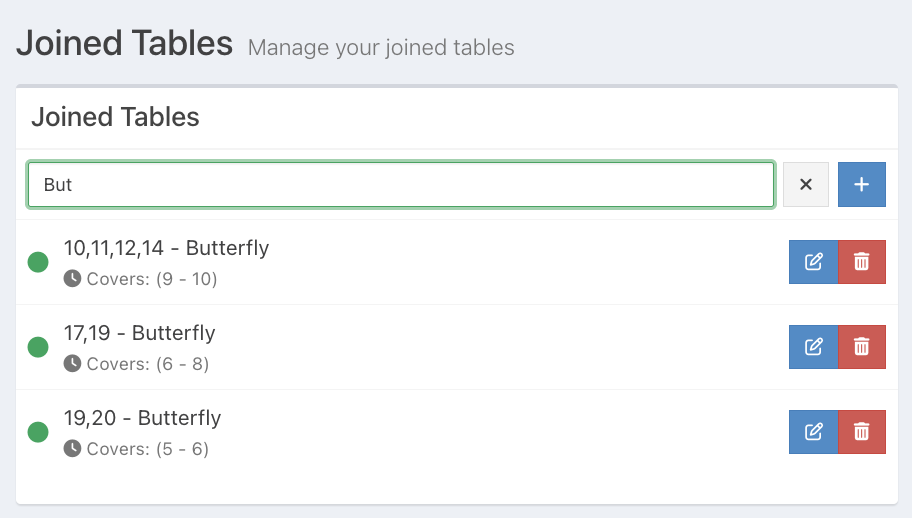
Start typing the name of the Joined Table into the text field, and any Joined Tables that contain those letters or numbers will display.
Was this article helpful?
That’s Great!
Thank you for your feedback
Sorry! We couldn't be helpful
Thank you for your feedback
Feedback sent
We appreciate your effort and will try to fix the article