To connect to Square for taking payments, first configure Square as your chosen processor on the back office, then connect to a Square device on each EPOS iPad.
When configured, Tap to Pay on Mini EPOS will be enabled by default. This will allow you to take contactless payments directly on the iPhone running the Mini EPOS app.
Square pre-authorisations will also be enabled. This will ensure the card is valid and has available funds, and will allow you to charge a customers card, if they leave your venue without paying their bill.
To configure Square as your payment processor, go into the back office and select Setup > EPOS from the left-hand navigation, then select Payment integration.

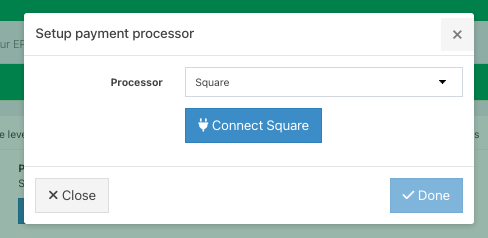
Click the blue Setup payment processor button.
Select Square from the dropdown field, followed by the blue Connect square button.
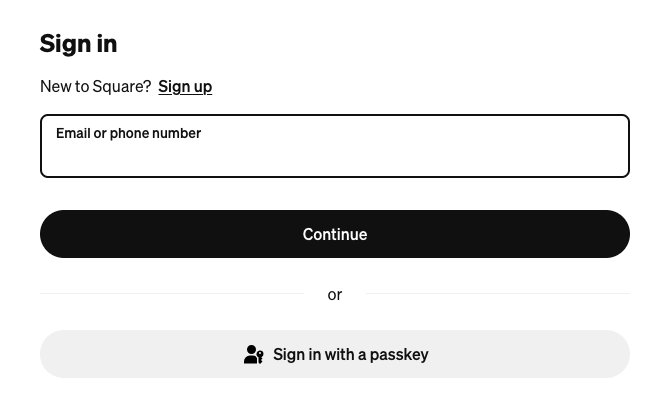
You will be directed to the Square sign-in screen. Sign in to your Square account.
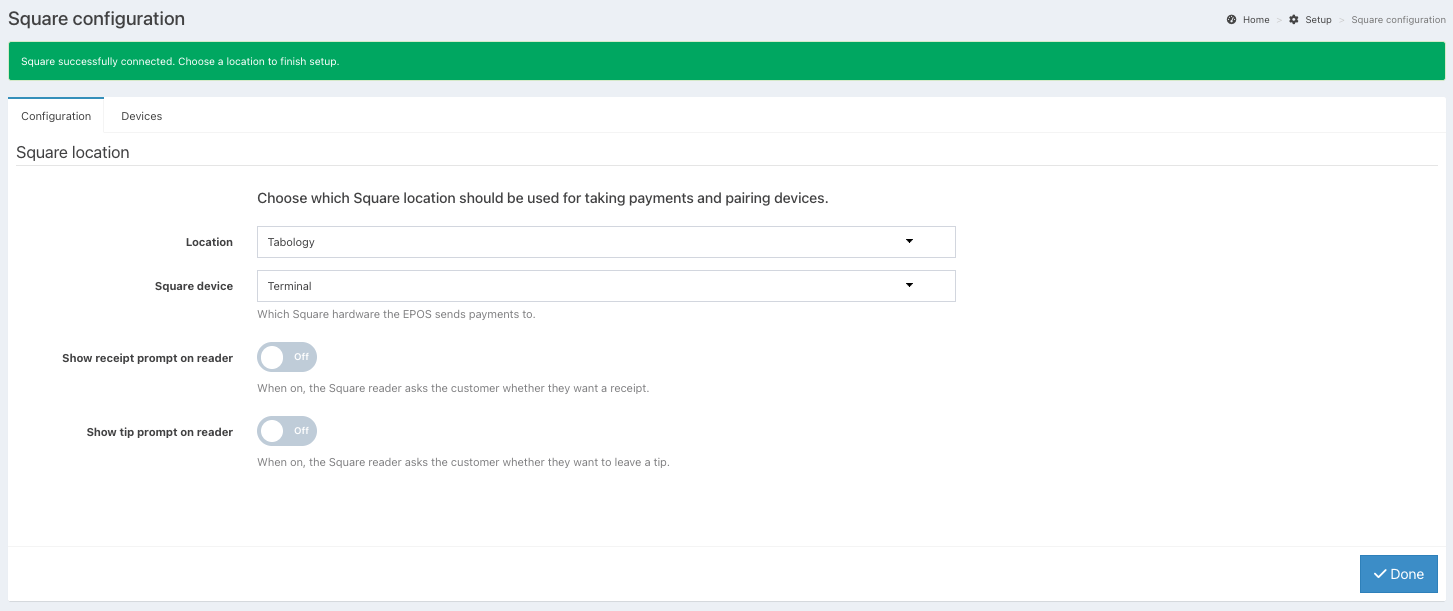
After you sign in, you will be taken back to Square configuration. A green success banner will display at the top of the screen.
You can now select your location and pair your device.
Configuring locations
If you have multiple Locations, you can select the correct location from the dropdown.
From the Square device dropdown, select which device you would like to send payments to:
- Terminal
- Stand or Reader
- All
If you would like the Square Terminal to prompt the customer for a receipt, toggle Receipt prompt to On.
Note: The receipt prompt setting will override the setting on the Square reader.
If you would like the Square Terminal to prompt the customer for a tip, toggle the Tip prompt to On.
Note: By default, the tipping percentages will be 5%, 10% and 20%. If you would like these to change, please contact support@tabology.com.
You can now configure your Square terminal, stand or reader on your EPOS devices.
Was this article helpful?
That’s Great!
Thank you for your feedback
Sorry! We couldn't be helpful
Thank you for your feedback
Feedback sent
We appreciate your effort and will try to fix the article